Defaults
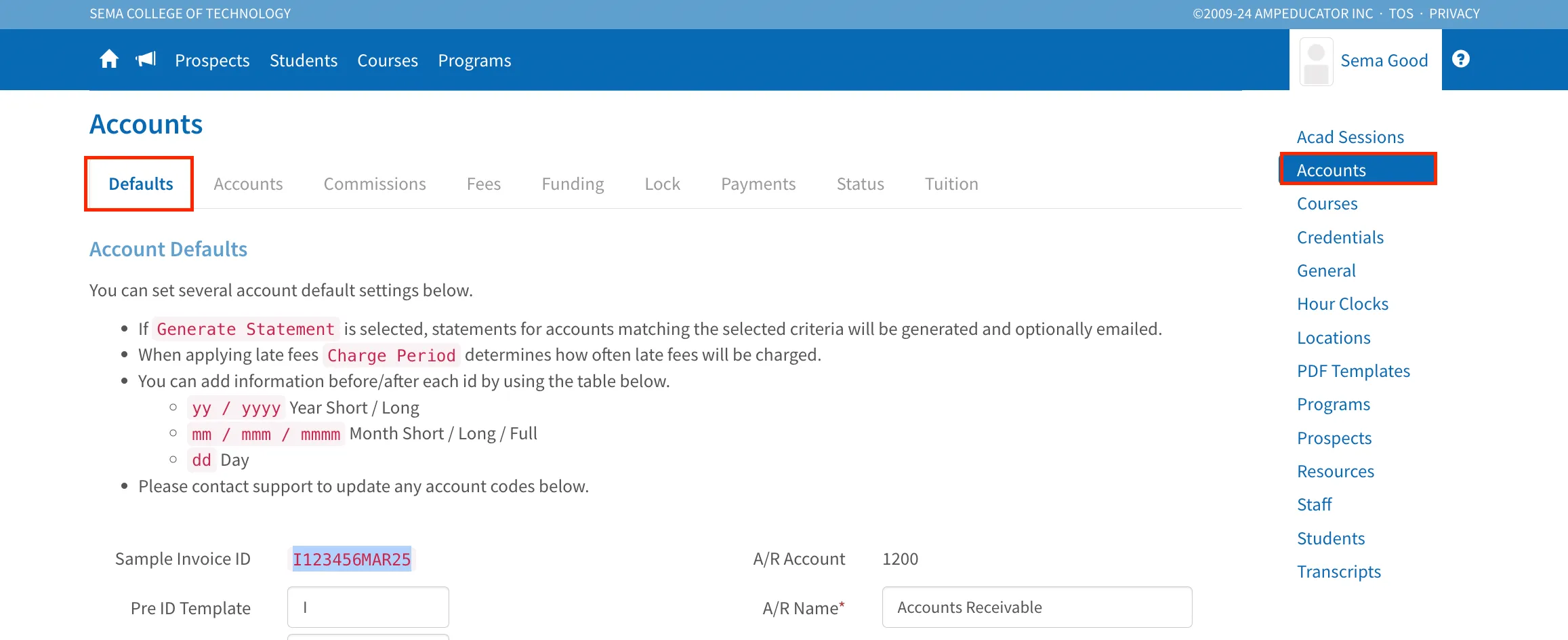
In the Institution Config / Accounts menu, you'll find multiple tabs, starting with Defaults. The Account Defaults section lets you set up key financial settings, including how invoices, payments, and adjustments are generated, along with options for managing late fees and statements.
Customizing Account ID Templates
In this section, you can customize the format of invoice, charge, payment, and adjustment IDs by setting a Pre ID Template and a Post ID Template.
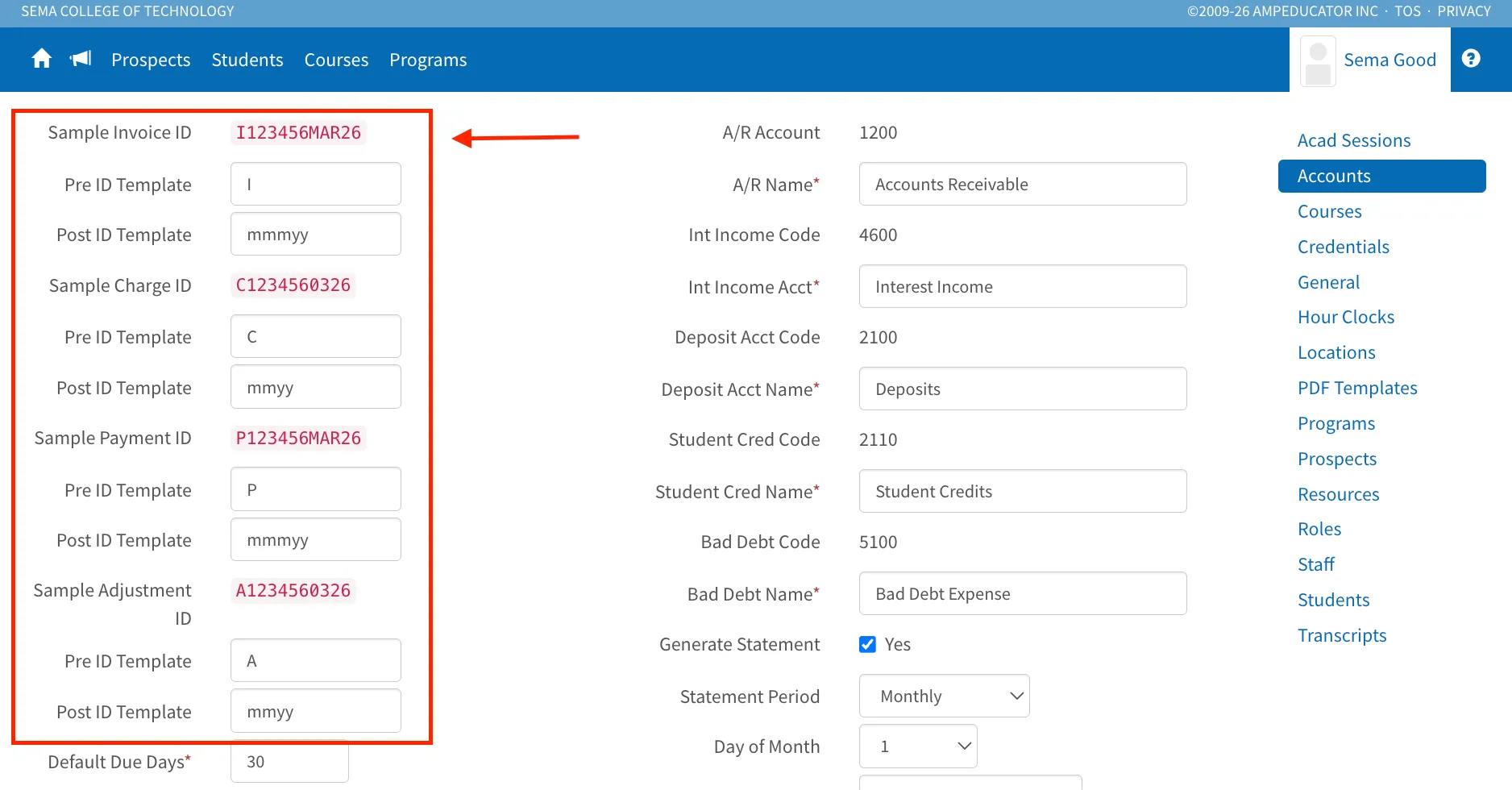
The post-template supports dynamic date formatting using:
- yy / yyyy – Short or long year format
- mm / mmm / mmmm – Short, abbreviated, or full month format
- dd – Day format
As you make changes, a sample ID is displayed at the top of each section, showing what the ID will look like based on your settings.
Due Dates and Late Fees
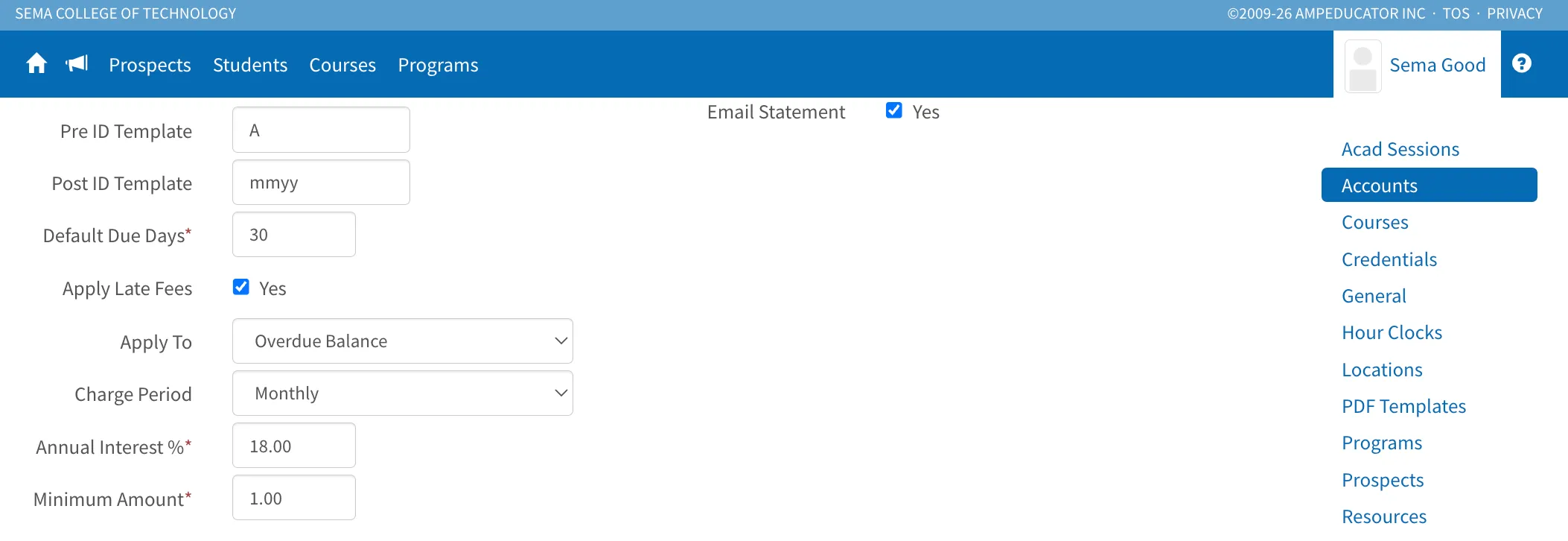
This section allows you to configure default due dates for invoices and charges, apply late fees to overdue balances, and set up automated reminders for unpaid invoices. Late fees help encourage timely payments by applying interest to outstanding balances based on your selected settings.
Default Due Days
Sets the number of days after an invoice or charge is created before it becomes due.
For example, if set to 30, new invoices will automatically receive a due date 30 days from the issue date, unless manually adjusted.
Apply Late Fees
Enable this option to automatically apply late fees to overdue balances.
If enabled, additional configuration options appear:
- Apply To – Choose whether late fees apply to the overdue balance or the entire account balance.
- Charge Period – Defines how often late fees are charged. Late fees can be applied weekly or monthly.
- Annual Interest % – Sets the annual interest rate used to calculate late fees.
- Minimum Amount – Defines the minimum late fee that will be applied. This prevents the system from creating very small charges.
Late fees are calculated based on the balance at the start of the charge period:
- Monthly: the balance on the 1st of the month
- Weekly: the balance on Monday
The interest is calculated on that balance amount for the selected period.
Automated Overdue Reminders
You can set up automated reminder emails that are sent to Students to notify them of payments that are overdue or coming due.
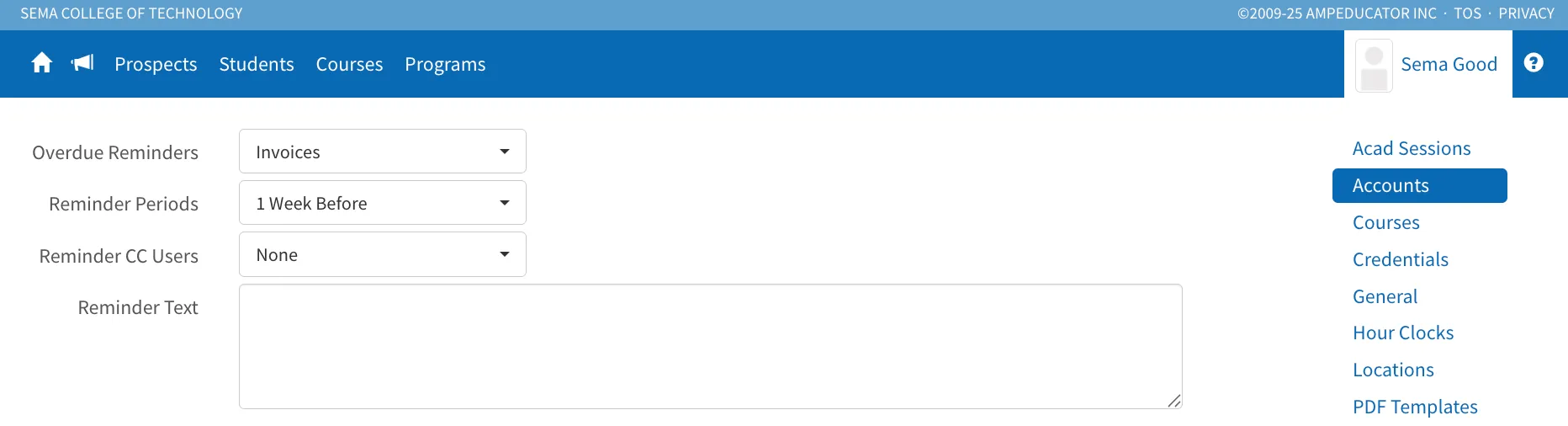
- Overdue Reminders – Choose what type of charges reminders apply to (for example, Invoices).
- Reminder Periods – Defines when reminders are sent relative to the due date (for example, 1 Week Before).
- Reminder CC Users – Optionally send a copy of reminder emails to selected staff members.
- Reminder Text – Customize the message that will be included in the reminder email sent to students.
The reminder email sent to Students includes details about the invoice or charge, such as the Student name, invoice ID, due date, total, balance owing, and a direct link to make a payment. A PDF copy of the invoice is also attached when applicable.
A daily job runs automatically to generate and send these reminders overnight.
Financial Defaults
The Financial Defaults section defines how transactions are categorized within the system, ensuring accurate tracking of accounts receivable, interest income, commissions, and other financial activities.
Each financial category has an assigned account code and account name. Both can be edited as needed in Institution Config → Accounts → Accounts.
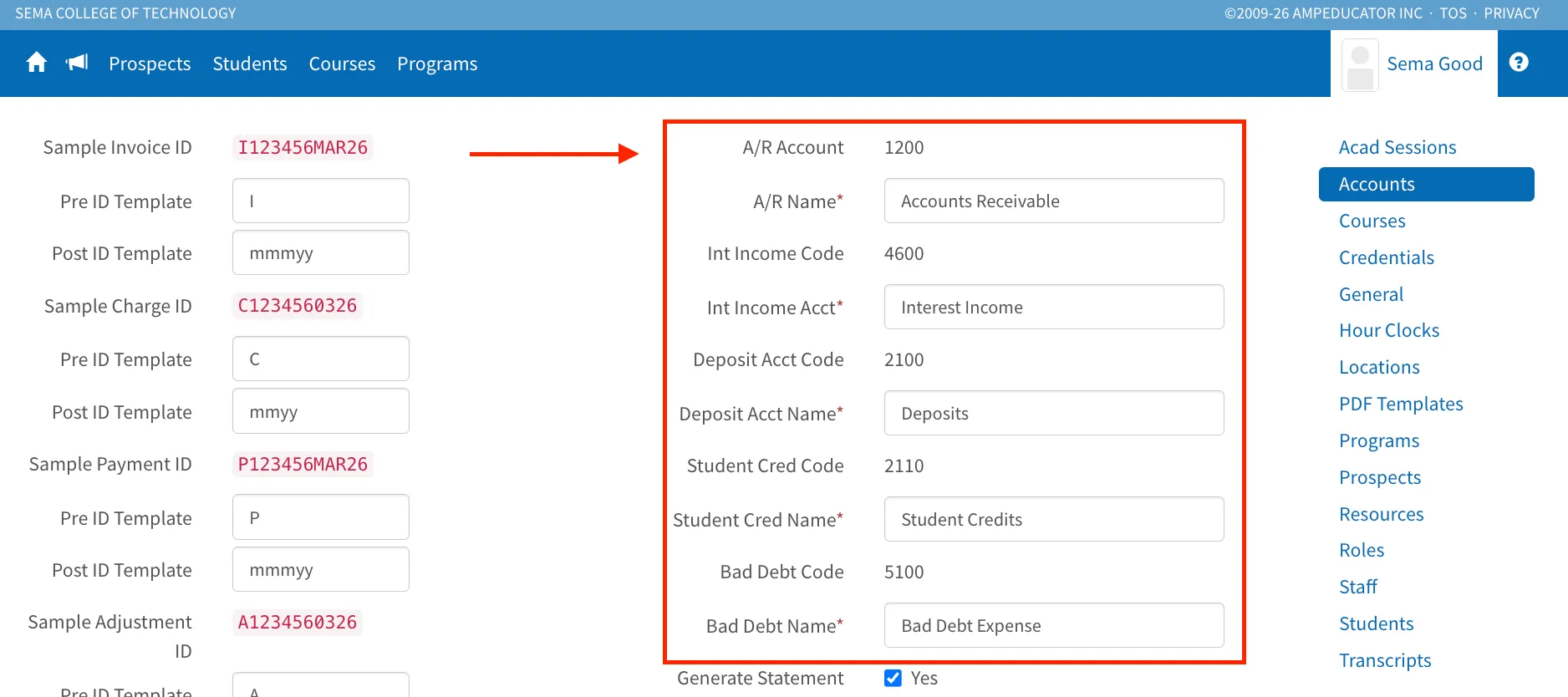
- A/R Account: Tracks outstanding balances owed to the institution under Accounts Receivable.
- Interest Income: Records revenue earned from interest charges.
- Commissions Payable: Represents commission payments owed to third parties.
- Commissions Expense: Tracks commissions paid as part of institutional expenses.
- Student Credits: Tracks the amount of adjustment credits applied to accounts.
- Bad Debt Expense: Tracks amounts written off for unpaid balances.
These settings ensure that financial transactions are properly categorized for accurate reporting.
Statement Generation & Delivery
You can configure how and when student account statements are generated and sent. If Generate Statement is enabled, additional options appear to define the frequency, timing, and delivery method of statements.
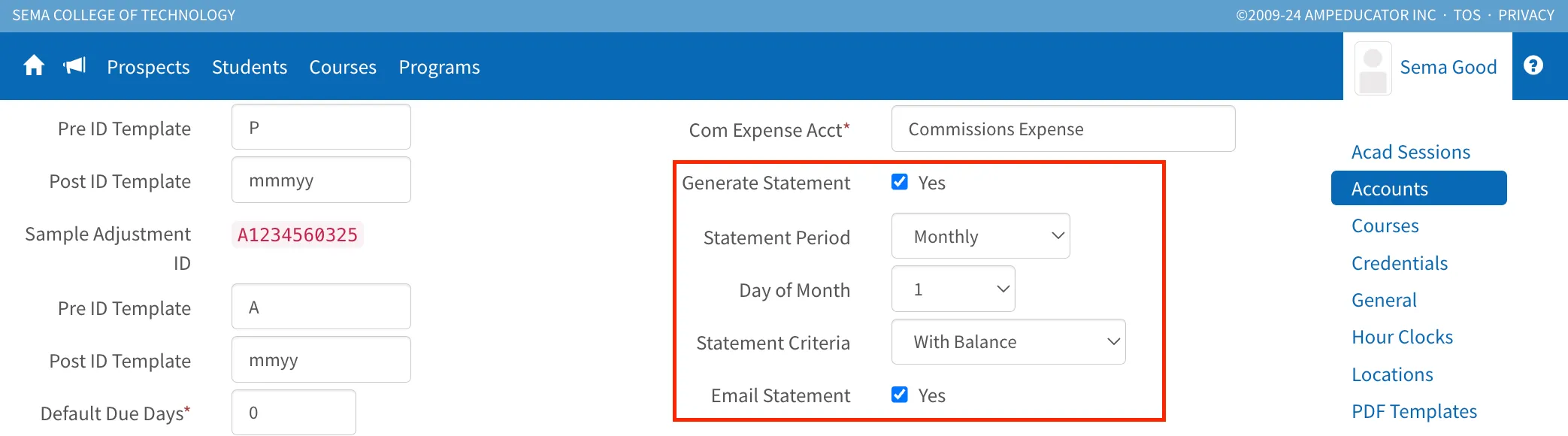
- Statement Period – Choose whether statements are generated weekly or monthly.
- Day of Month – Set the specific day statements are generated each period.
- Statement Criteria – Select which accounts receive statements based on their status (with balance, with current due, or overdue at 30, 60, or 90 days).
- Email Statement – Enable this option to automatically send statements to students via email.
These settings help automate and streamline the distribution of financial statements, ensuring students receive timely updates on their account status.
Reports & Fine Print
This section allows you to customize the fine print for various reports, including receipts, refunds, invoices, and statements. Each report type has an option to add internal formatting and fine print details that will appear on the generated document.
You can also choose the Report Address, which can either be the Institution Address or the Student’s Location.
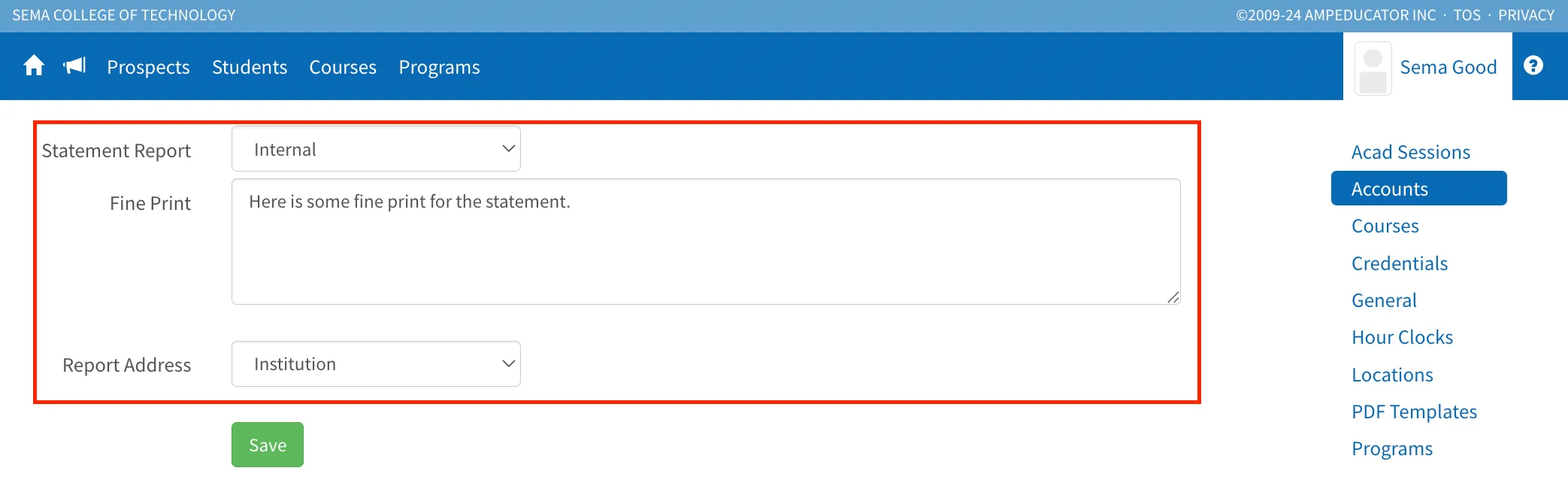
These settings provide flexibility in tailoring financial documents to your institution’s specific needs.