New Tuition Statement Reporting Guide (T2202 & 1098-T)
Disclaimer
This tool is designed to assist ampEducator clients in generating Tuition Statements, including Canada T2202 Tuition and Enrolment Certificates and U.S. 1098-T forms for submission to the appropriate tax authority.
Proper configuration and accurate financial transaction entry in ampEducator are required to ensure the accuracy of the generated statements. ampEducator Inc. is not an accounting firm and does not guarantee compliance with CRA, IRS, or other regulatory requirements.
It is the responsibility of each client to review the applicable official reporting guidelines — including the CRA’s T2202 Tuition and Enrolment Certificate Summary and the IRS Instructions for Forms 1098-T and 1096 — and to consult a certified professional accountant or tax advisor for compliance verification.
Overview
The Simple Tuition Statement Calculation method streamlines tuition statement reporting by:
- Using the payment date to determine the tax year
- Pulling eligible tuition revenue automatically
- Removing the need for complex proration
- Reducing manual configuration
The system generates:
- Student Tuition Statement PDFs (Portal Download)
- Manual PDF downloads
- XML file for CRA submission
How the Simple Calculation Works
The system will:
- Look at payments made within the selected tax year.
- Identify payments applied to invoices linked to:
- Eligible Programs and/or Courses
- Selected Tuition Revenue Account(s)
- Add those eligible amounts to the student’s tuition statement.
This method is based on when payment was made, not when tuition was delivered.
Before You Begin: Financial Setup Requirements
Tuition eligibility is determined strictly by how invoices and payments are recorded in ampEducator. The system does not infer tuition eligibility based on invoice descriptions or account naming conventions.
For a tuition amount to be included in a tuition statement, the following must have been done at the time the invoice was created:
- Program or Course Association: The invoice line item must be associated with a Program or Course using the Program/Course selector. If left blank, the tuition will not be considered eligible.
- Revenue Account: The invoice line item must be posted to a Revenue Account designated for tuition.
- Payment Application: Payments must be applied to the tuition invoice. Unapplied payments will not be included unless Auto Apply Payments is enabled.
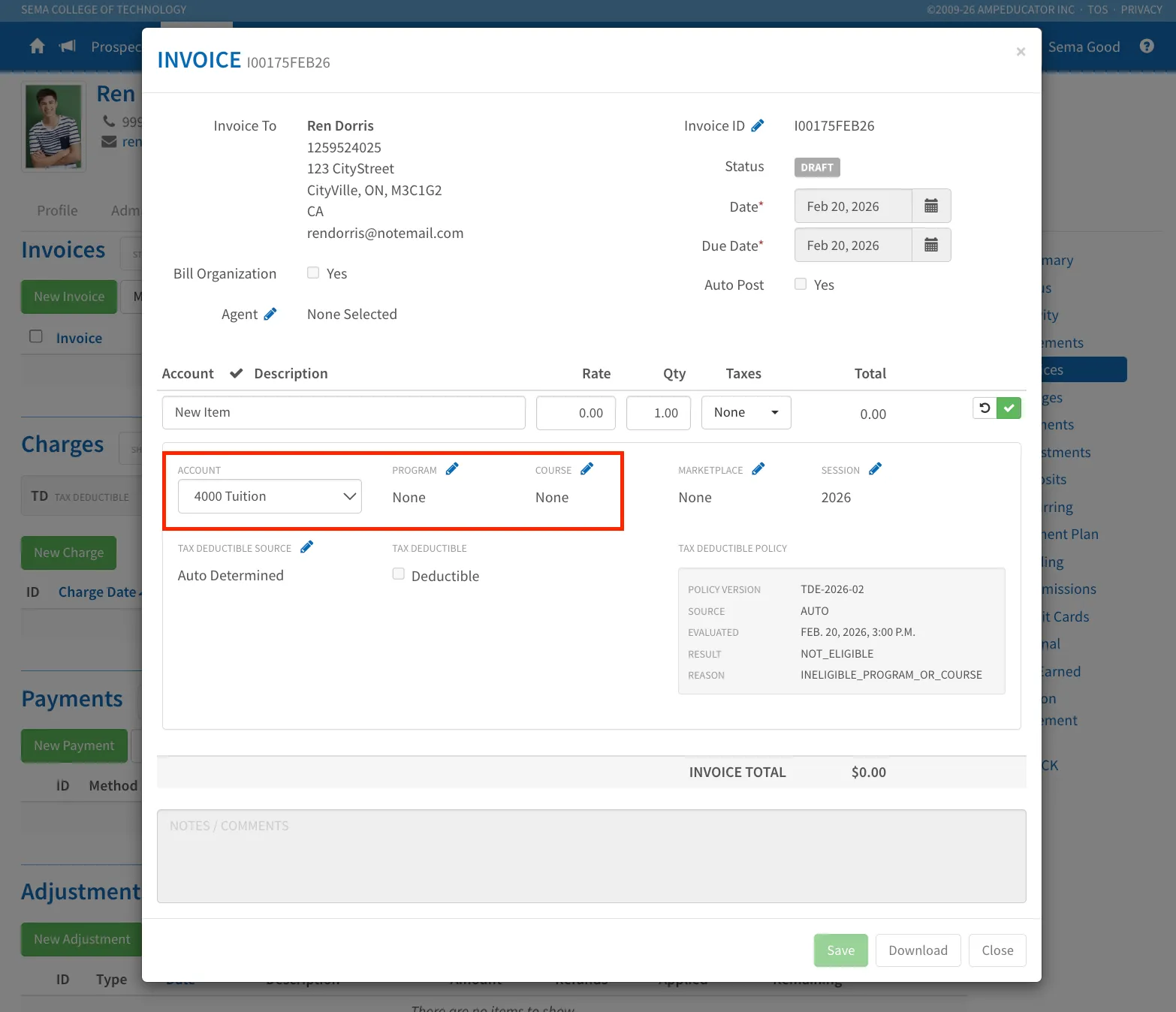
Tuition eligibility is determined at the invoice line-item level.
If invoices were created during the year without the proper Program/Course association or Revenue Account, those invoices will not automatically become eligible later. They must be manually corrected before generating a new Tuition Statement Job.
Step 1: Review Tuition Configuration
Before generating tuition statements using the Simple method, review your configuration under:
Institution Config → Accounts → Tuition
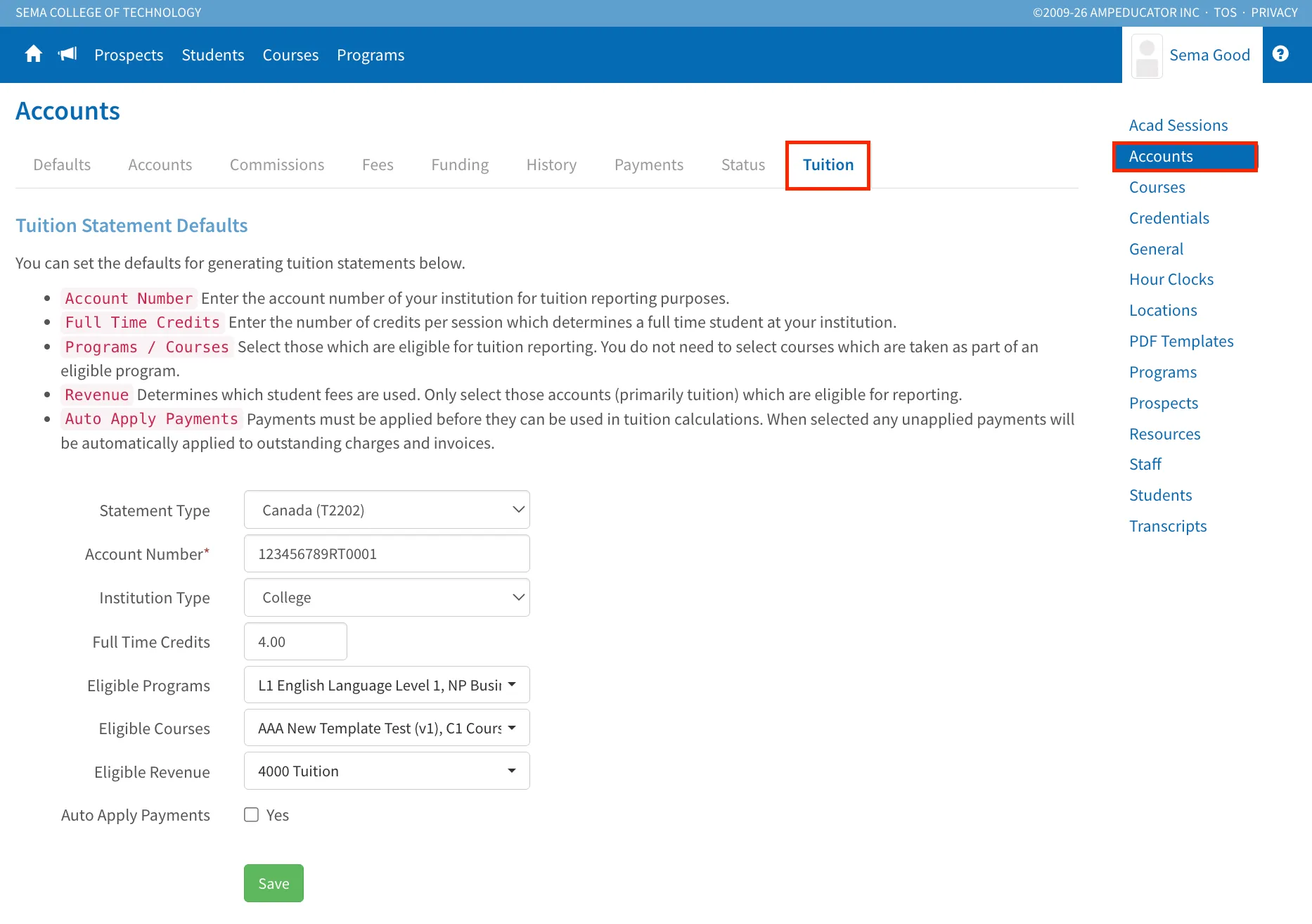
The selections made here determine what ampEducator includes in the tuition calculation.
- Statement Type: Select Canada (T2202) or United States (1098T).
- Account Number: Enter your institution’s account number for tuition reporting purposes.
- Institution Type: Select the appropriate institution type (College, University, etc.).
- Full-Time Credit Threshold (if applicable): Enter the number of credits that qualify a student as full-time for reporting purposes.
- Eligible Programs: Select the programs that qualify for tuition reporting. If a student is enrolled in an eligible program, tuition payments applied to invoices associated with courses within that program will be included automatically. In most cases, selecting eligible programs is sufficient.
- Eligible Courses: Select courses only if you offer standalone courses that are not tied to a program but still qualify for tuition reporting. If a course belongs to an eligible program then it does not need to be selected separately.
- Eligible Revenue Accounts: Select the tuition revenue account(s) used on your tuition invoices (for example, 4000 Tuition). The Simple method pulls eligible payments based on the revenue account selected here.
- Auto Apply Payments (Optional): When enabled, any unapplied payments will automatically be applied to eligible tuition invoices during calculation.
Important: Configuration Does Not Rewrite Historical Invoices
Updating Eligible Programs, Eligible Courses, or Eligible Revenue Accounts does not retroactively correct invoices that were previously created without proper associations.
Configuration controls eligibility rules, but invoice structure determines whether past transactions qualify.
If invoices were not structured correctly during the year, they must be manually corrected.
Once configuration is confirmed, proceed to Step 2..
Step 2: Generate a Tuition Statement Job (Simple Method)
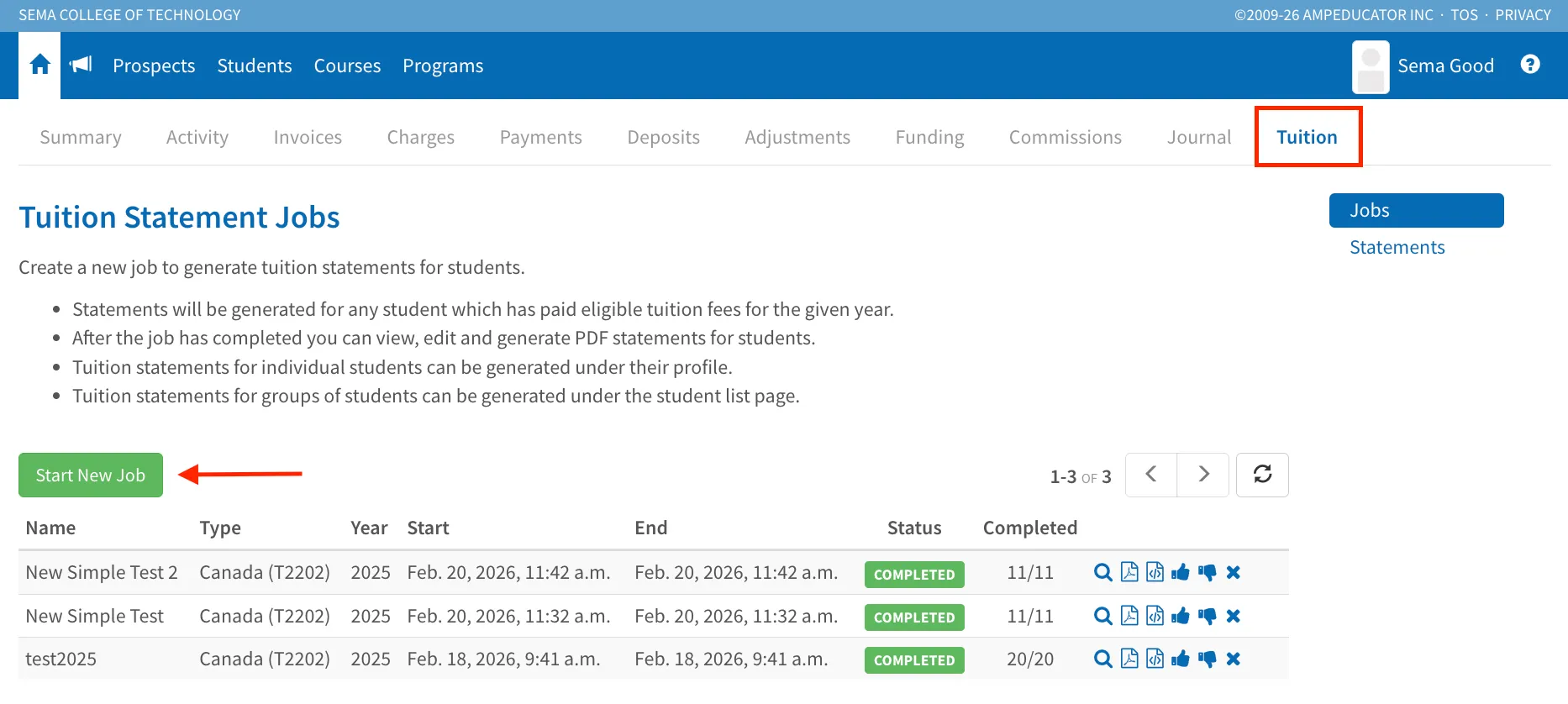
Navigate to Home → Accounts → Tuition.
In the Tuition Statement Jobs section, click the green Start New Job button to open the Start Tuition Statement Job window.
Complete the following fields:
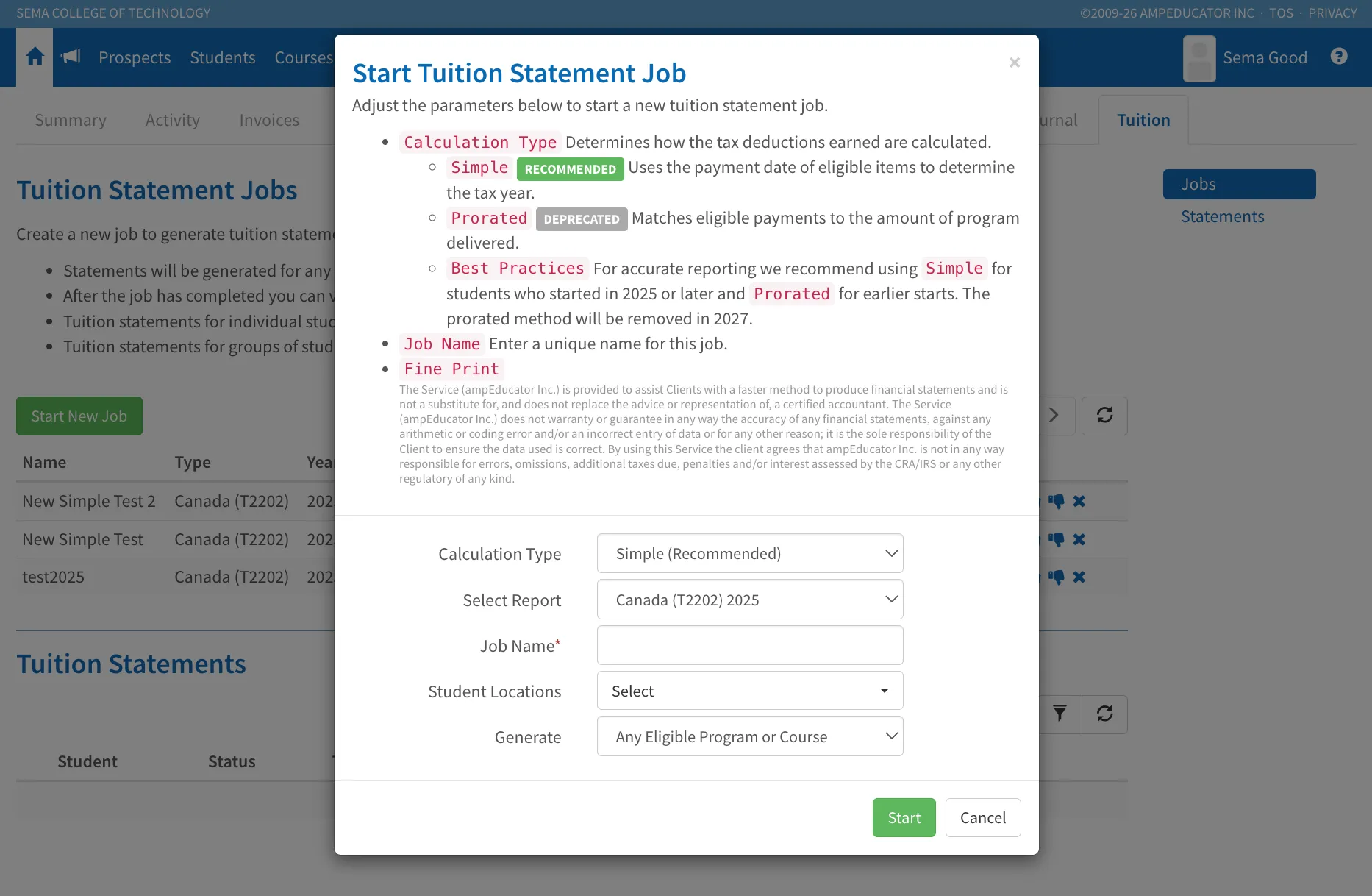
- Calculation Type: Select Simple (Recommended). This method uses the payment date of eligible tuition items to determine the tax year.
- Select Report: Choose the applicable tax year (for example, Canada (T2202) 2025).
- Job Name: Enter a unique name to identify this job for tracking and review purposes.
- Student Locations: Select the location(s) you are generating statements for. If your institution has multiple Business Numbers, generate a separate job for each location.
- Generate: Choose how you want the system to determine eligibility:
- Any Eligible Program or Course: Includes all Programs and Courses selected under Institution Config → Accounts → Tuition.
- Select Programs and Courses: Allows you to manually choose specific Programs and/or Courses for this job. When selected, additional fields will appear so you can choose the applicable Programs and Courses.
If students are enrolled in Programs and tuition charges are program-based, selecting the eligible Programs is typically sufficient. If students are enrolled directly into standalone Courses, ensure those Courses were selected as eligible.
The system will only generate statements for students who have earned tax deductions for that year.
Click Start to begin generating the job.
You will be returned to the Tuition Statement Jobs list. If you do not see your new job right away, click the Refresh button. Continue refreshing until the status updates from Pending to Completed.
Once the job shows as Completed, proceed to Step 3 to review the generated Tuition Statements.
If the Job Shows Errors or Fewer Statements Than Expected
In the Tuition Statement Jobs list, review the Completed column (for example, 7/12). If the total completed statements are fewer than expected, or if errors are indicated:
Click the View (magnifying glass) icon next to the job.
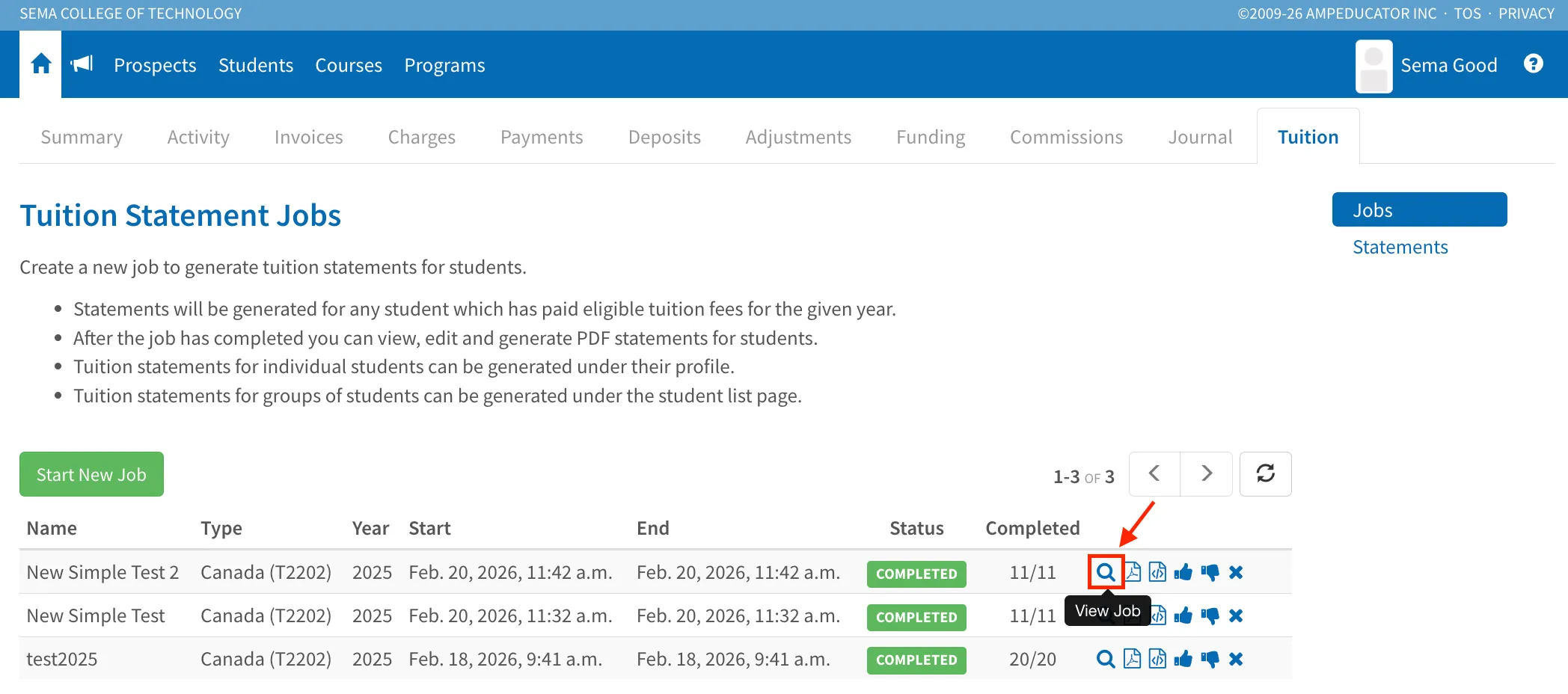
Review the Job Details and processing log. Check the Total Errors field for any issues.
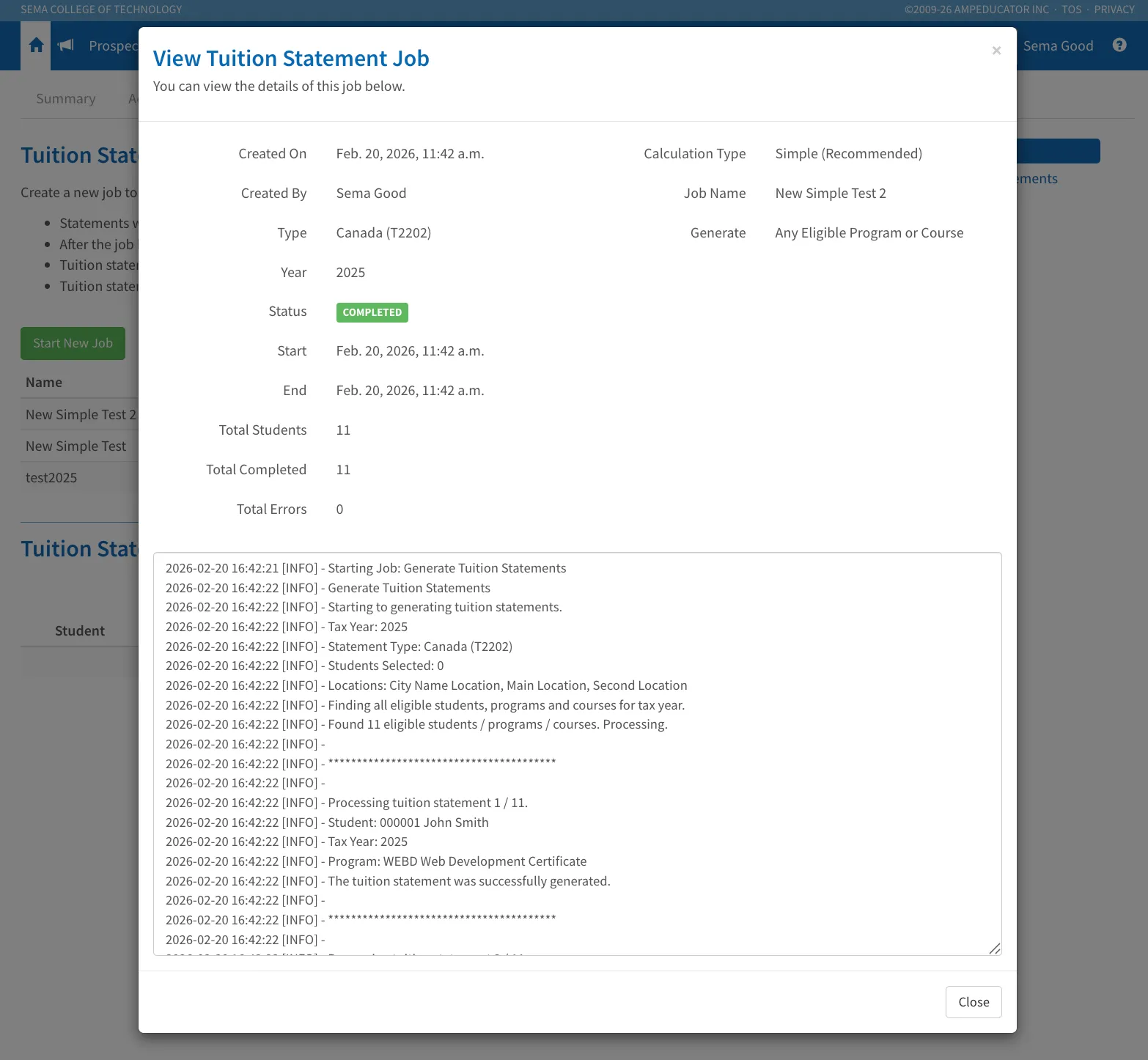
The log will indicate which students were processed and whether any statements failed to generate.
If corrections are needed, update the relevant student, enrollment, or financial information and generate a new Tuition Statement Job.
Step 3: Review, Verify, and Correct Tuition Statements
Once your Tuition Statement Job shows as Completed, review the generated statements before finalizing or submitting.
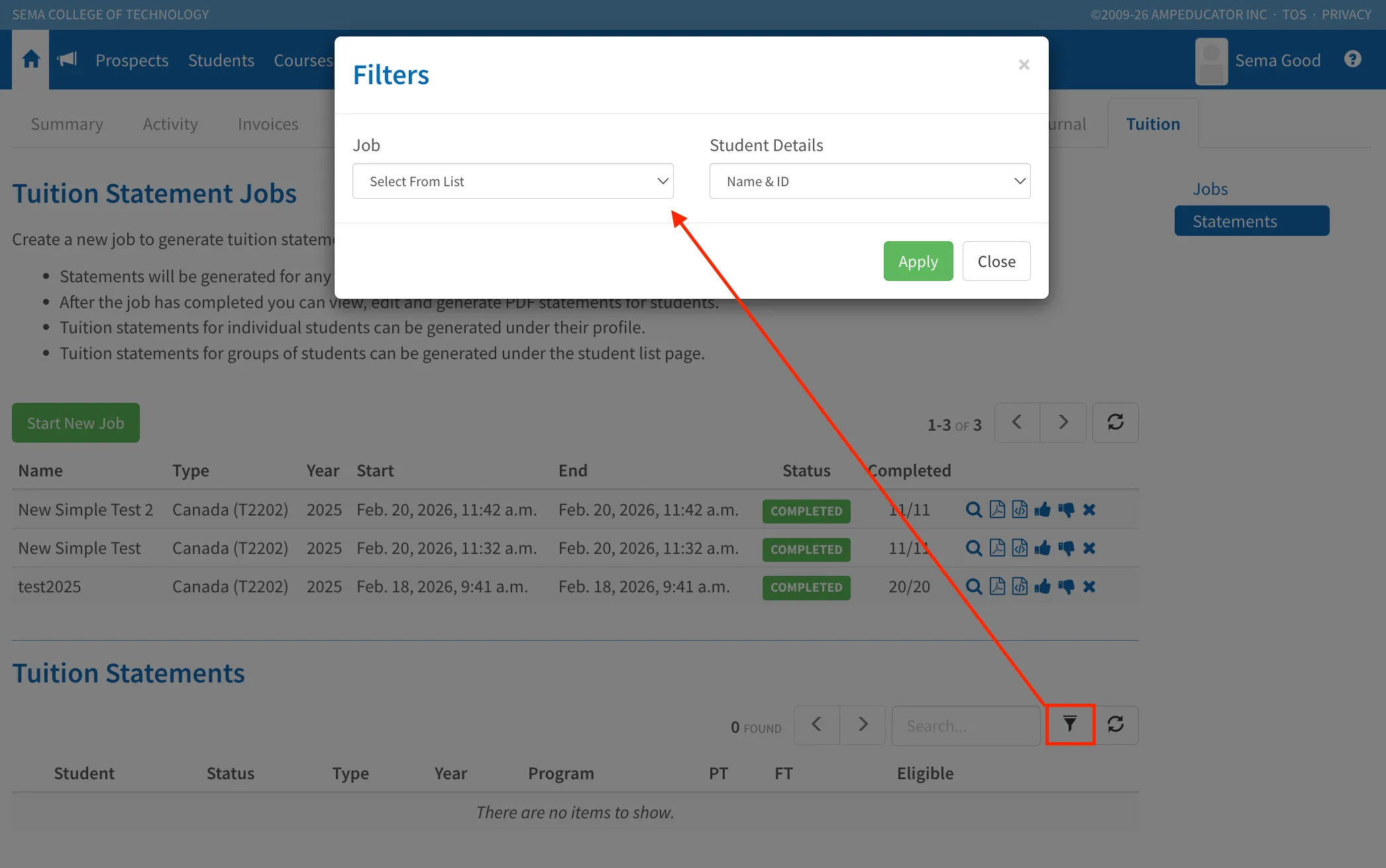
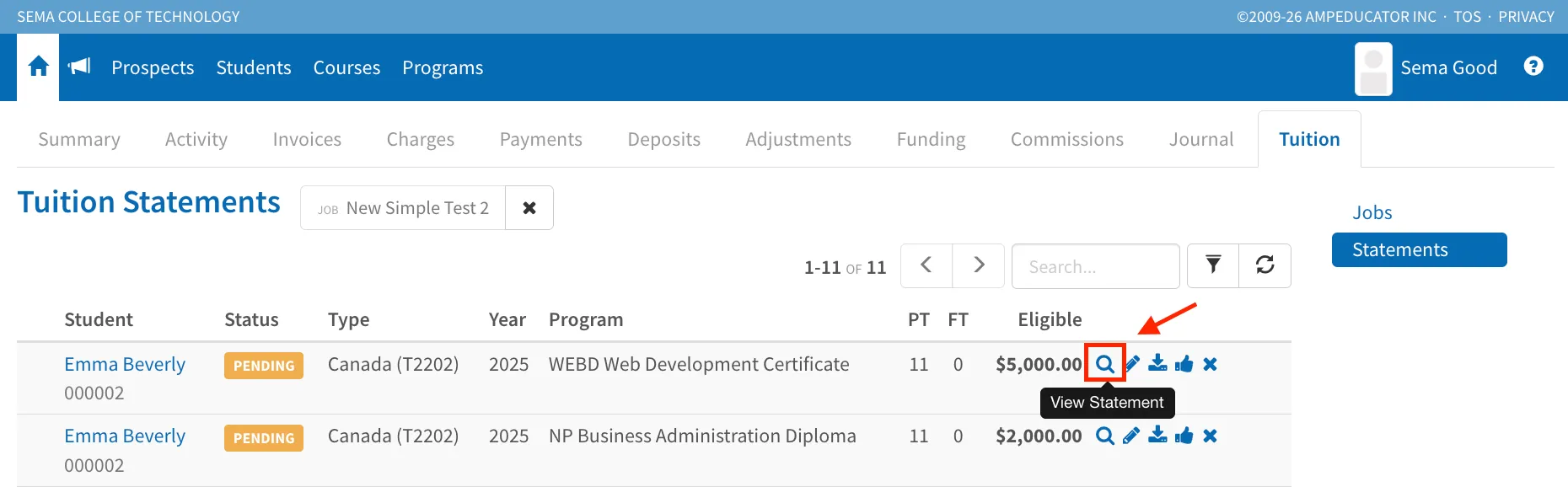
Navigate to: Home → Accounts → Tuition. Scroll to the Tuition Statements section. Click the Filter icon and select your Job Name.
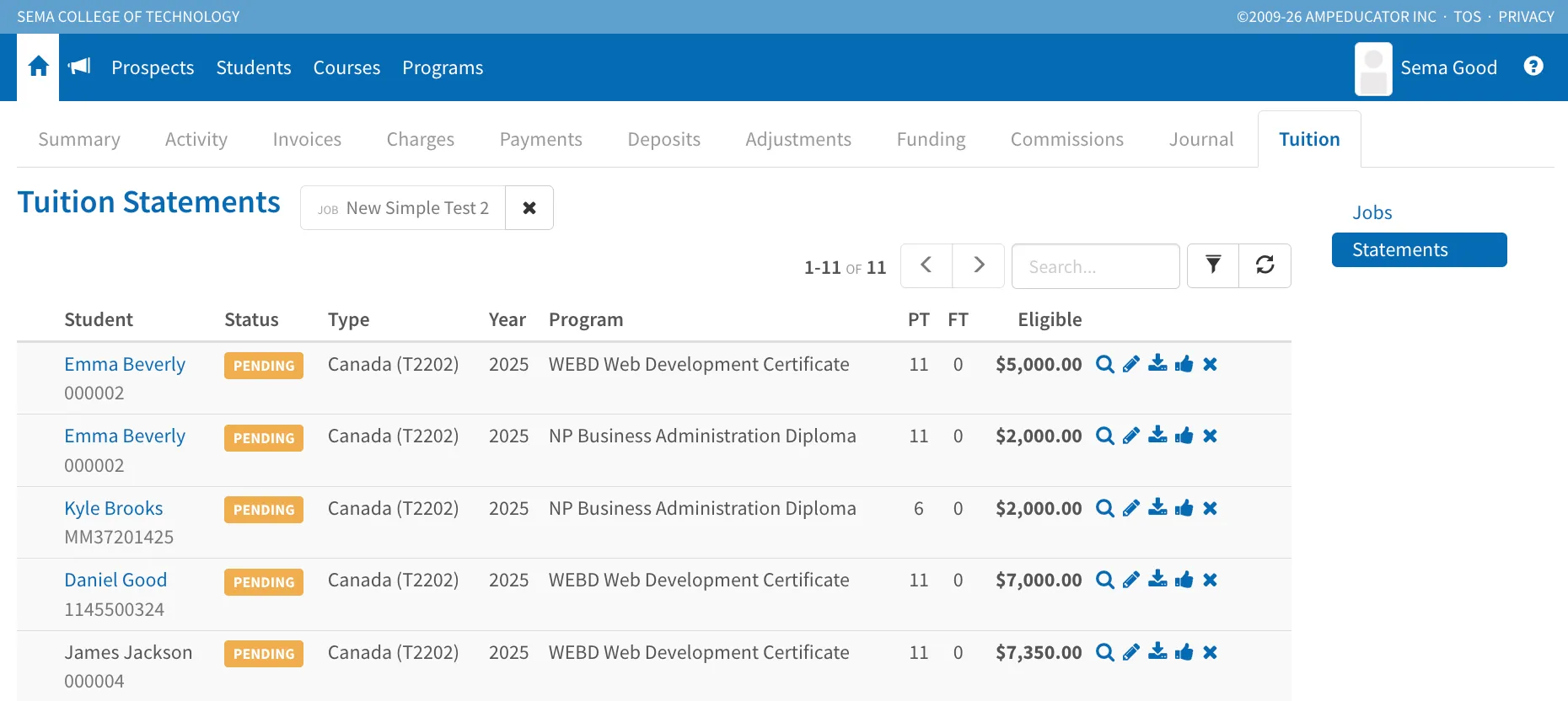
You will see a list of students showing their name, program, Part-Time (PT) and Full-Time (FT) months, eligible tuition amount, and current statement status.
Review an Individual Tuition Statement
Click the View Statement (magnifying glass) icon beside a student’s name.
Review the statement year, program or course, session breakdown, full-time and part-time months, and total eligible tuition.
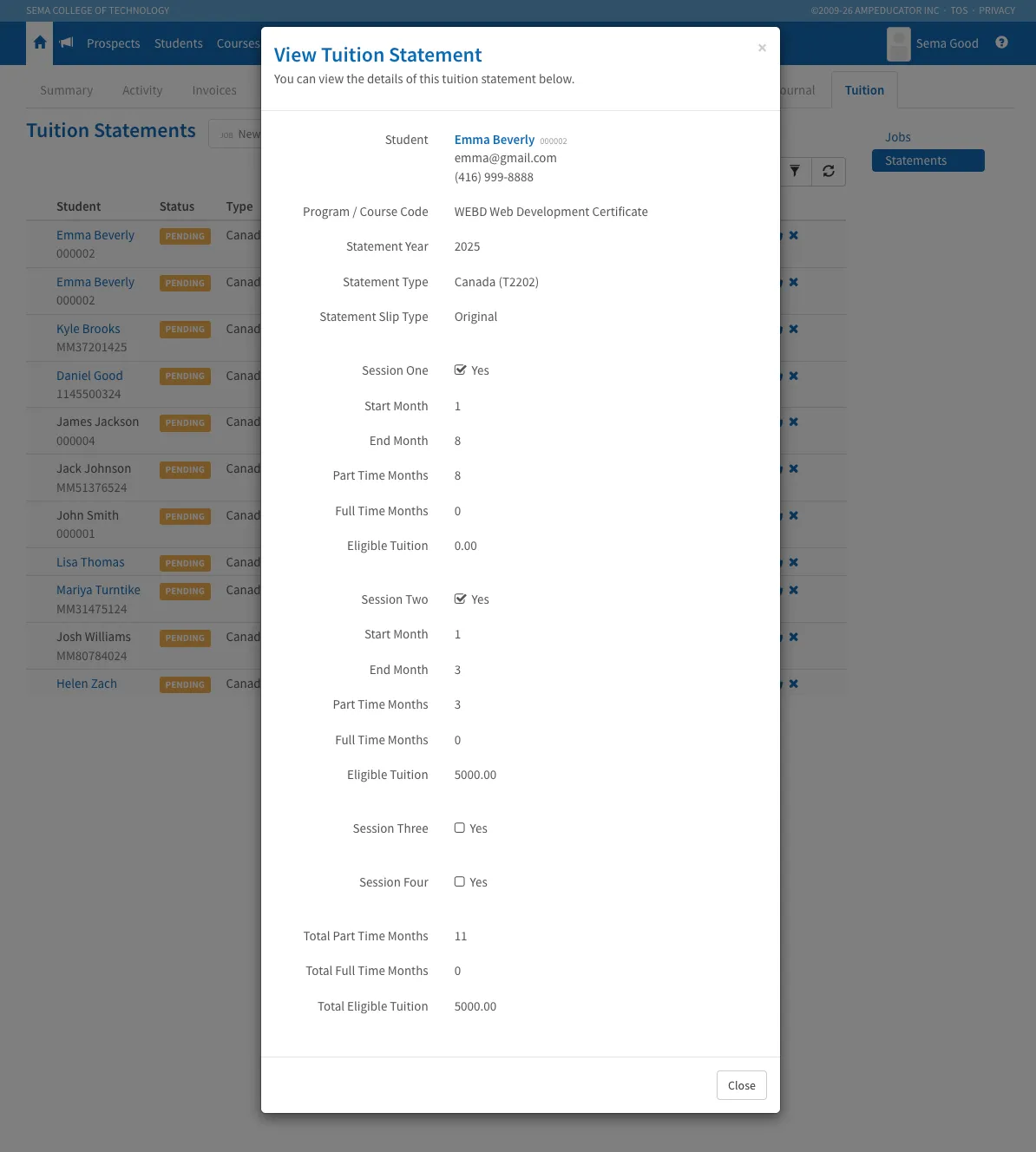
If everything appears correct, you may proceed to Step 4.
If something looks incorrect, continue below.
Confirm the Tuition Breakdown (Tax Deductions Earned)
The Tuition Statements list does not display the detailed breakdown of invoices and payments directly.
To confirm how the total was calculated, navigate to the Student Profile → Accounts → Tax Deductions Earned.
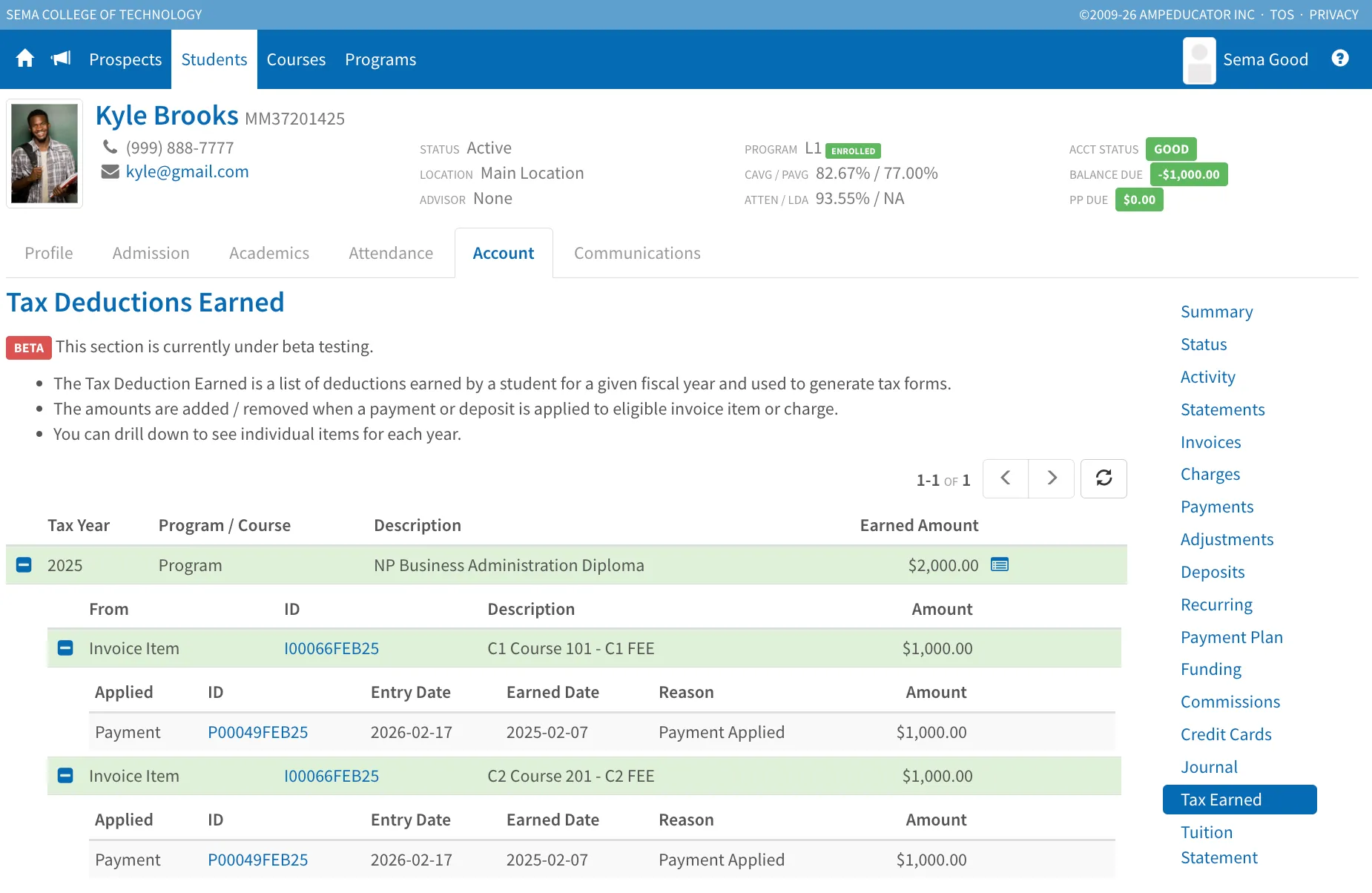
This section displays the tuition earned by tax year and shows the invoices and payments contributing to the total.
Confirm that:
- The correct tax year is selected
- Expected invoices are listed
- Payments were applied within the reporting year
If the total matches expectations, you may proceed.
Troubleshooting Missing or Incorrect Amounts
If tuition amounts are missing or incorrect, review the original financial records.
Start by locating the student invoice, and click the Edit Invoice icon.
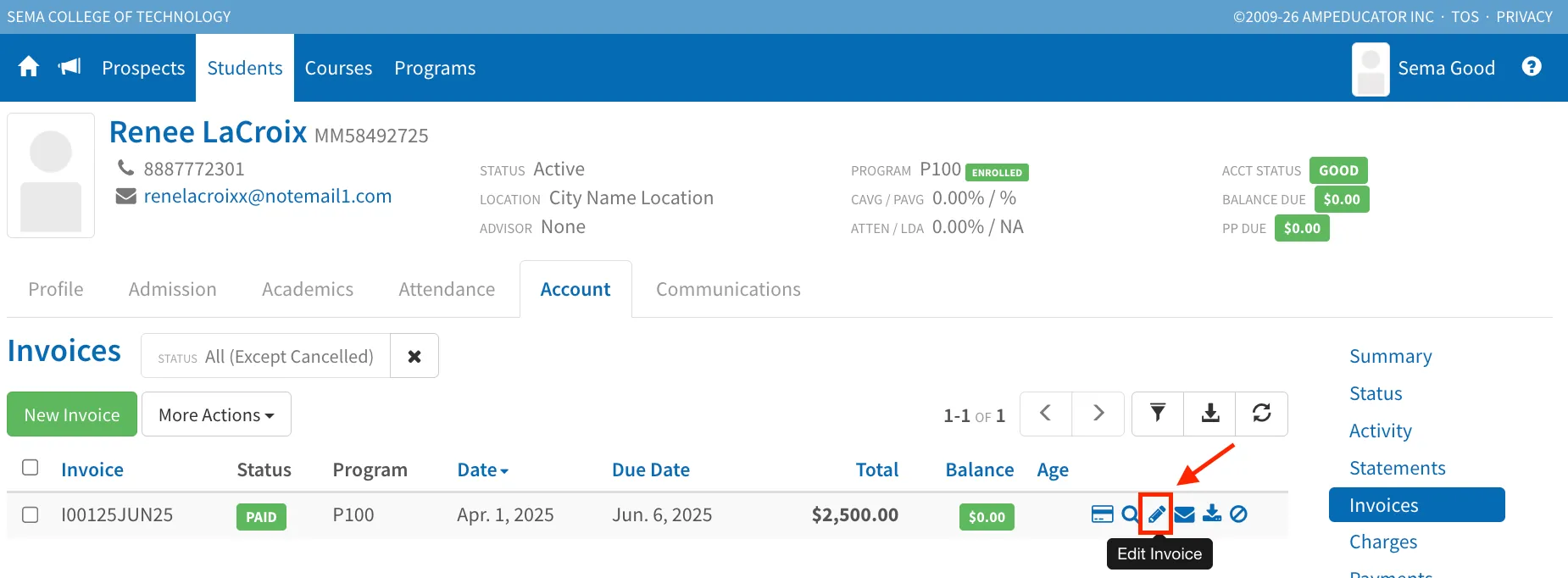
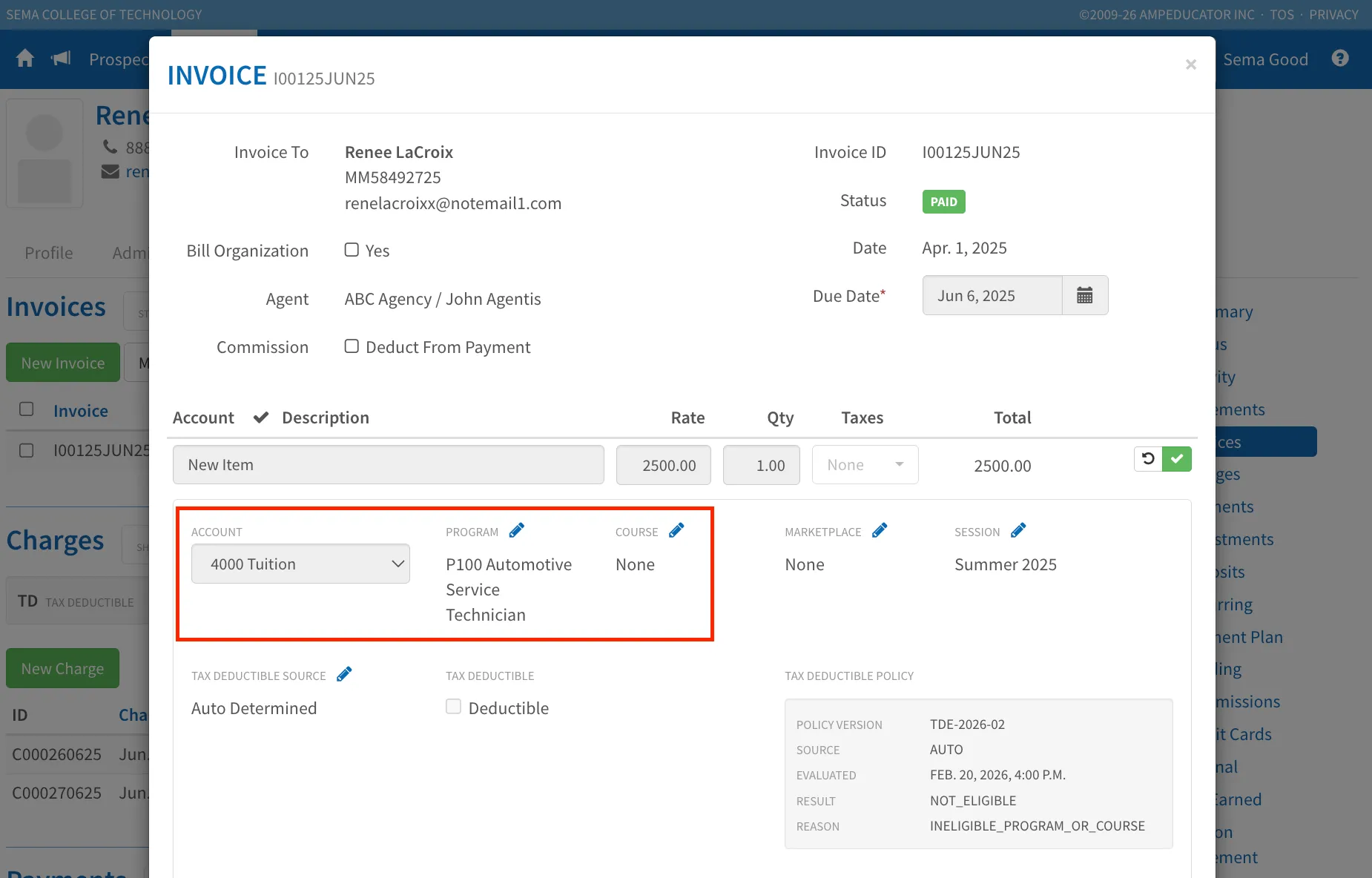
On the invoice line item, confirm that the correct Revenue Account is selected and that the appropriate Program or Course is associated.
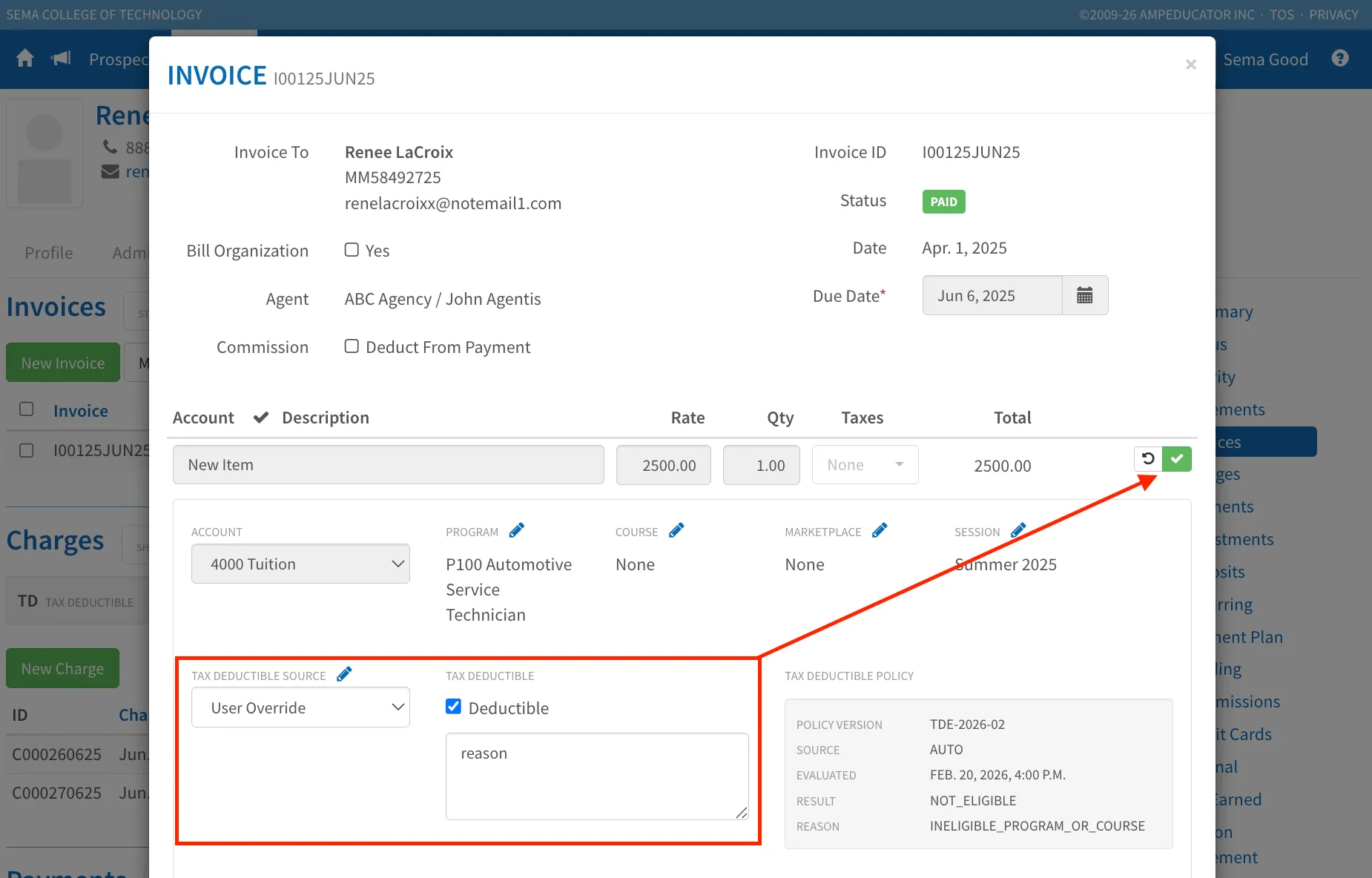
If the invoice should be included but is not marked as deductible, change Tax Deductible Source to User Override, check the Deductible box, enter the required reason, and save.
After making corrections, return to Home → Accounts → Tuition and generate a new Tuition Statement Job to reflect the updated data.
Tuition Statements always reflect the underlying financial transactions. Any corrections require a new job to update totals.
Step 4: Finalize and Distribute Tuition Statements
Once you have reviewed all statements and confirmed that amounts are correct, you may finalize and distribute them.
Navigate to Home → Accounts → Tuition.
In the Tuition Statement Jobs section, you will see several action icons available beside your completed job.
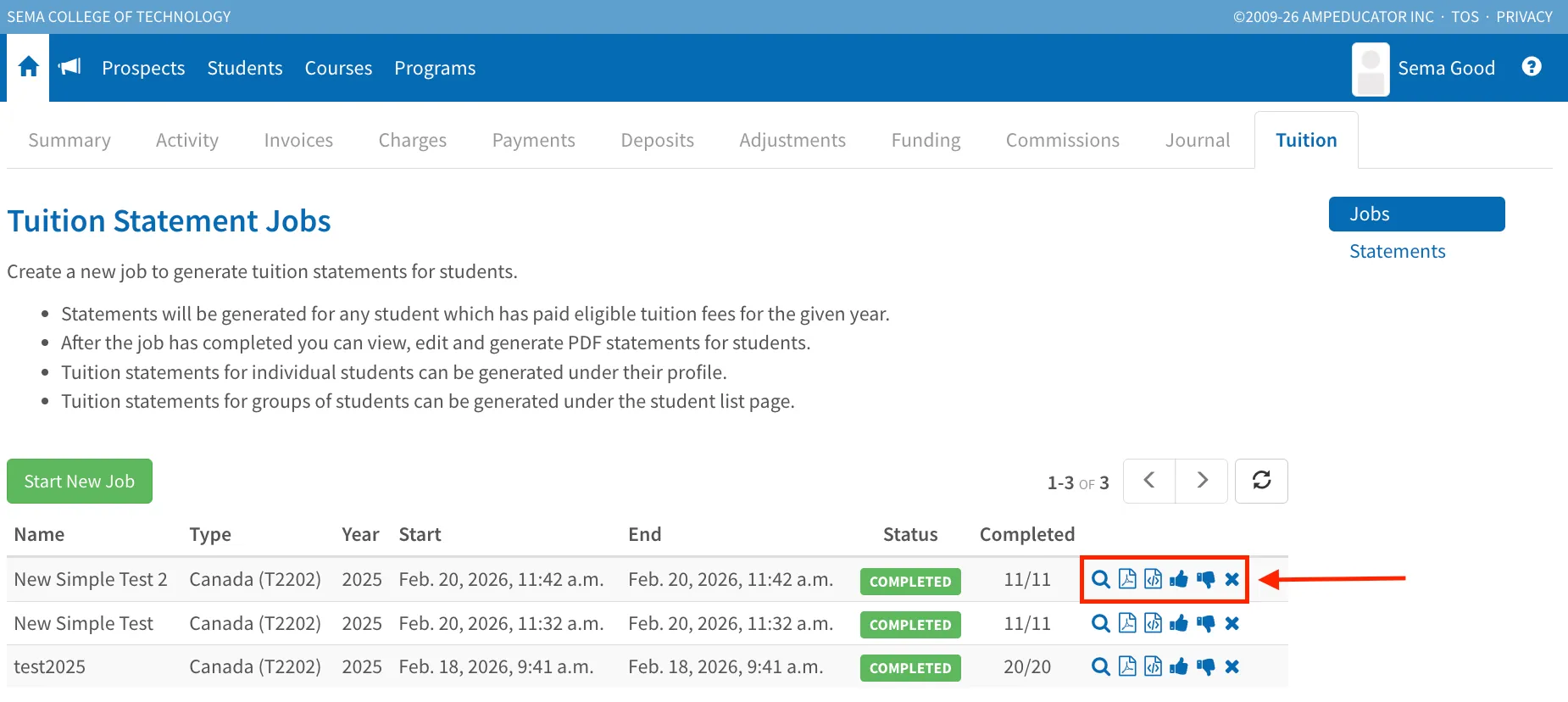
These allow you to manage the job as a whole:
- View (Magnifying Glass): Opens the job summary and processing log. As mentioned above, this displays the calculation type used, report year, total students processed, and any errors encountered during generation. This is especially helpful if the Completed count is lower than expected.
- Generate PDFs (PDF icon): Downloads all student tuition statements from that job in bulk.
- Generate XML (Code/XML icon): Creates the CRA submission file for this job.
- Make All Statements Available (Thumbs Up): Publishes all statements in this job to the Student Portal.
- Set All Statements to Pending (Thumbs Down): Temporarily removes student access to statements.
- Delete Job (X icon): Permanently removes the job and all statements generated within it.
Before publishing or submitting, ensure that all statements have been reviewed and verified.
If you are a Canadian institution, you may now generate the XML file for CRA submission.
Step 5: Generate and Download the T2202 XML Return (Canada)
Once your Tuition Statement Job is complete and all statements have been reviewed and finalized, locate your completed job and click the Generate XML Return icon.
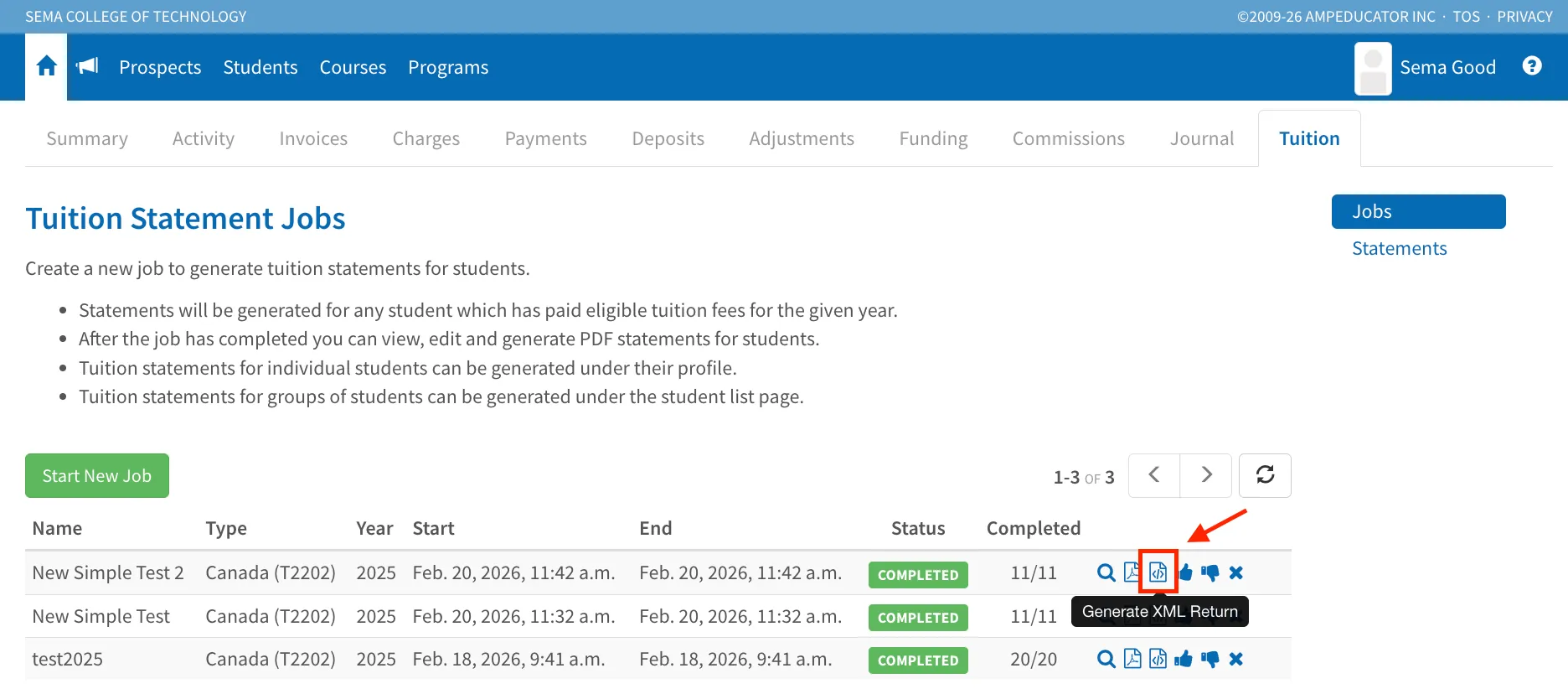
This will open the Generate T2202 XML Return modal. The XML file requires transmitter details for CRA submission. Complete the fields as follows:
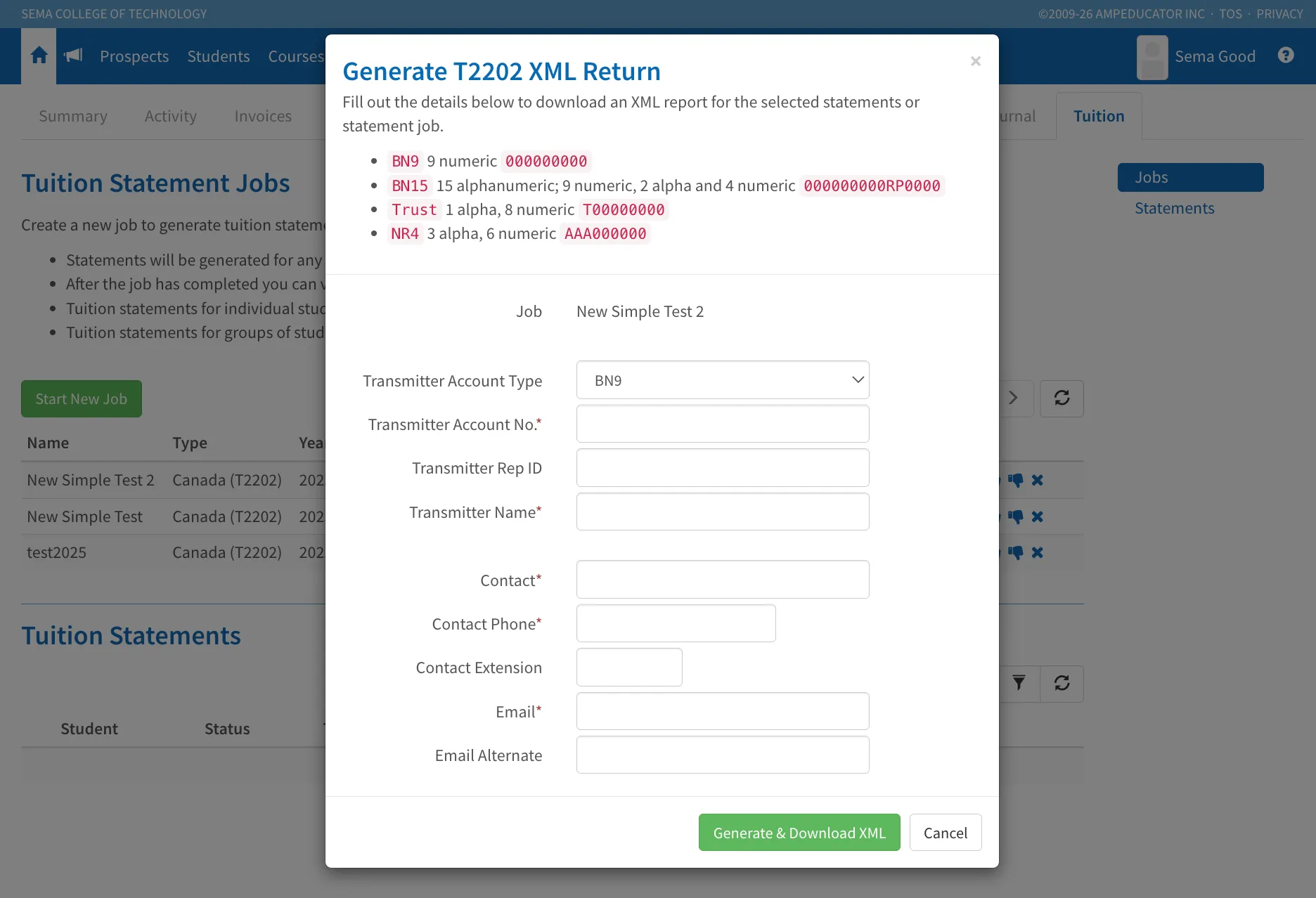
- Transmitter Account Type: Select the appropriate account type (e.g., BN9, BN15, Trust, NR4) based on your CRA registration.
- Transmitter Account No.: Enter the full CRA account number associated with your organization (format must match the selected account type).
- Transmitter Rep ID: Enter your CRA Representative ID, if applicable.
- Transmitter Name: Enter the legal name of the transmitter (typically your institution name).
- Contact: Enter the primary contact person for this submission.
- Contact Phone: Enter the contact phone number (no special formatting required unless specified).
- Contact Extension: Enter an extension if applicable.
- Email: Enter the primary contact email address.
- Email Alternate: Optional secondary contact email.
The job name being generated will be displayed at the top of the modal for confirmation.
Once all required fields are completed, click Generate & Download XML.
The system will generate the CRA-compliant XML file and download it to your computer.
Save this file securely for submission and recordkeeping.
Submit the XML to CRA
After downloading the file:
- Log in to the CRA Internet File Transfer (XML) portal.
- Upload the generated XML file.
- Review any validation messages returned by CRA.
- Save the confirmation/receipt number provided by CRA for your records.
If CRA Returns Errors
If CRA reports validation errors:
- Carefully review the CRA error message.
- Return to the relevant Tuition Statement Job or Student record in ampEducator.
- Correct the underlying data (SIN, account number, tuition amount, etc.).
- Generate a new XML file after corrections are complete.
Do not reuse an XML file after making changes to student records — always regenerate a fresh file.